Date/Time Feature Description
Canvas includes a Date/Time object for displaying system date and time values. Users can select different date and time formats in the object properties, including date only, time only, or combined formats.
Date/Time Designer Functionalities
To insert a Date/Time object, go to Insert > Date/Time, or click the Insert Date/Time icon from the toolbar. Click and drag anywhere on the screen to place the Date/Time object, as shown below:

Properties
The Date/Time object includes multiple properties that allow full customization of its behavior and appearance.
To access the Property Window, click View > Properties.
Basic Properties
The Basic Properties allows users to rename the object and configure the Date/Time format that will be displayed.

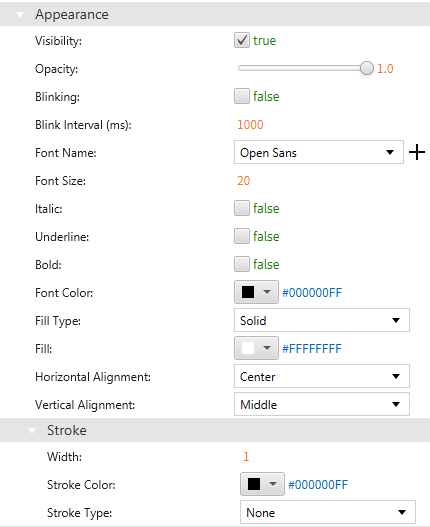
Appearance
The Appearance section lets users adjust the object’s visible characteristics, including color.
Position
The Position section provides adjustable properties that reshape or move the date/time object.

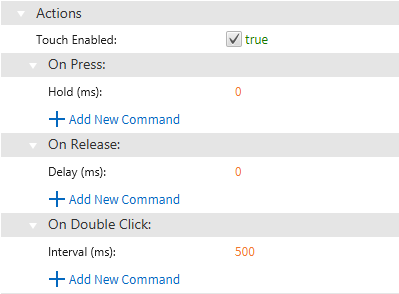
Actions
If the date/time object is pressed, released, or double-clicked, the object runs a script or command. This is controlled under the On Press, On Release, or On Double click section of the Actions tab.
Permissions
Permissions can be assigned to the date/time object to allow the correct users to interact with them.
