Exercise
Exercise: Displaying Alarms with the Alarm Banner
Please follow the below exercise to understand how to use the Alarm Banner object.
Configuration
The following configuration is used to set up this exercise.
Tag Configuration
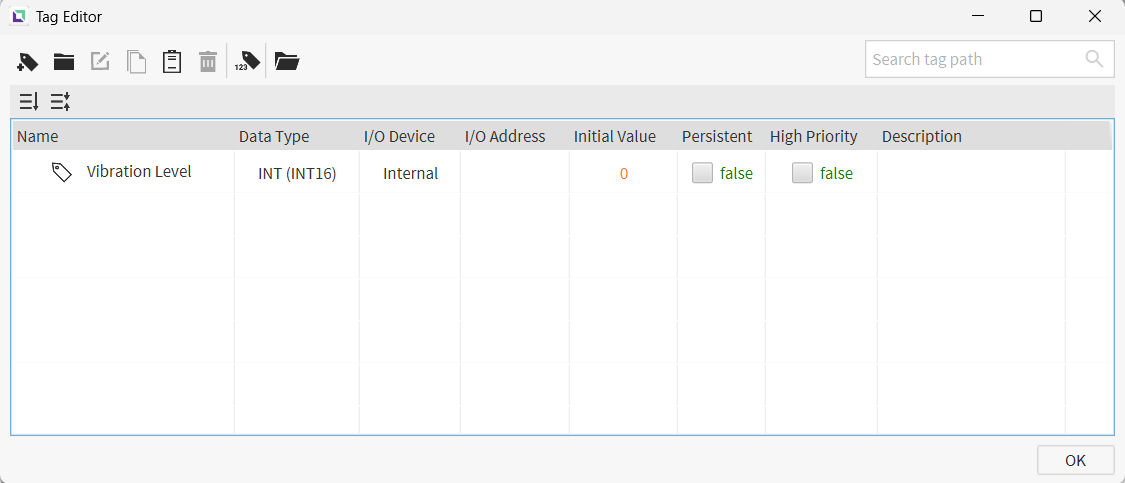
- Create the following tag:
- Vibration Level
- Data type: INT (INT16)
- Initial value: 0
- Vibration Level
Alarm Configuration
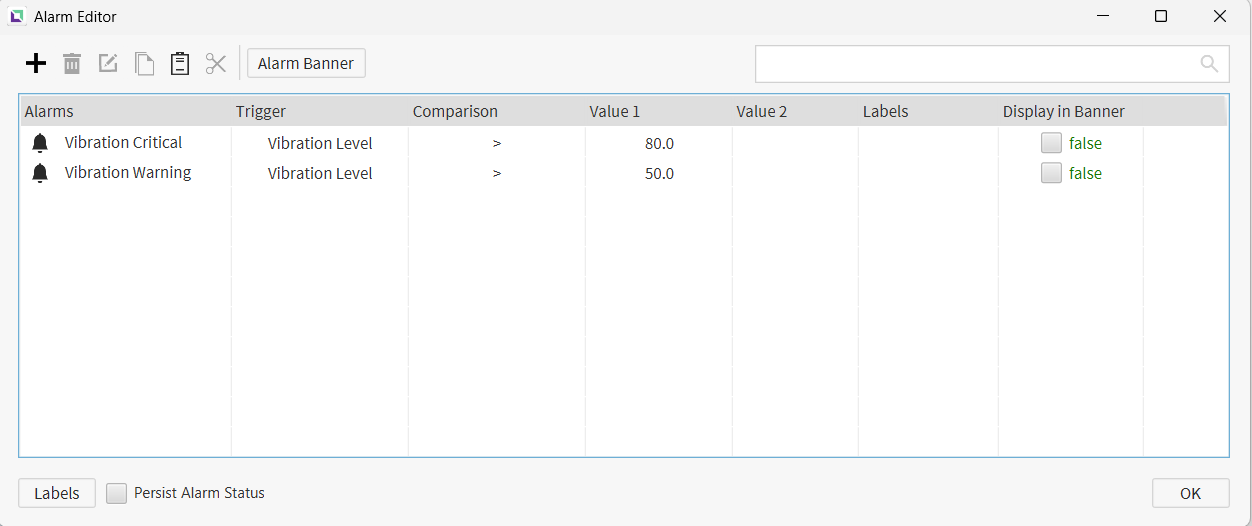
- Create the following alarms under Tools > Alarm Editor:
- Vibration Warning
- Tag: Vibration Level
- Condition: Greater Than
- Value: 50
- Vibration Critical
- Tag: Vibration Level
- Condition: Greater Than
- Value: 80
- Vibration Warning
Alarm Banner Configuration
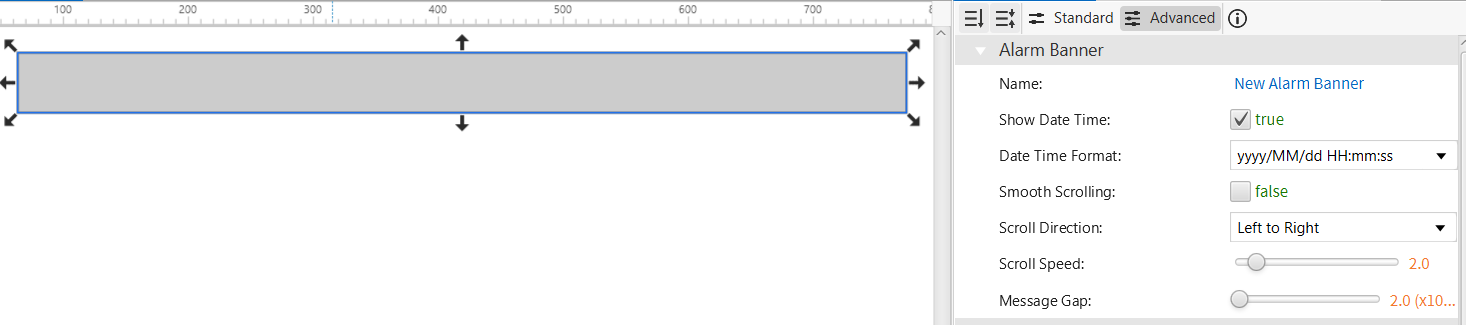
- Go to Insert > Alarm Banner, then click and drag to create the Alarm Banner object.
-
In the Properties pane, click Add Alarm under Alarm Items to create the first Alarm Item.
Select Vibration Warning, then set its Background Color to yellow and Font Color to black.
-
Click Add Alarm again to create a second Alarm Item.
Select Vibration Critical, then set its Background Color to red and Font Color to white.
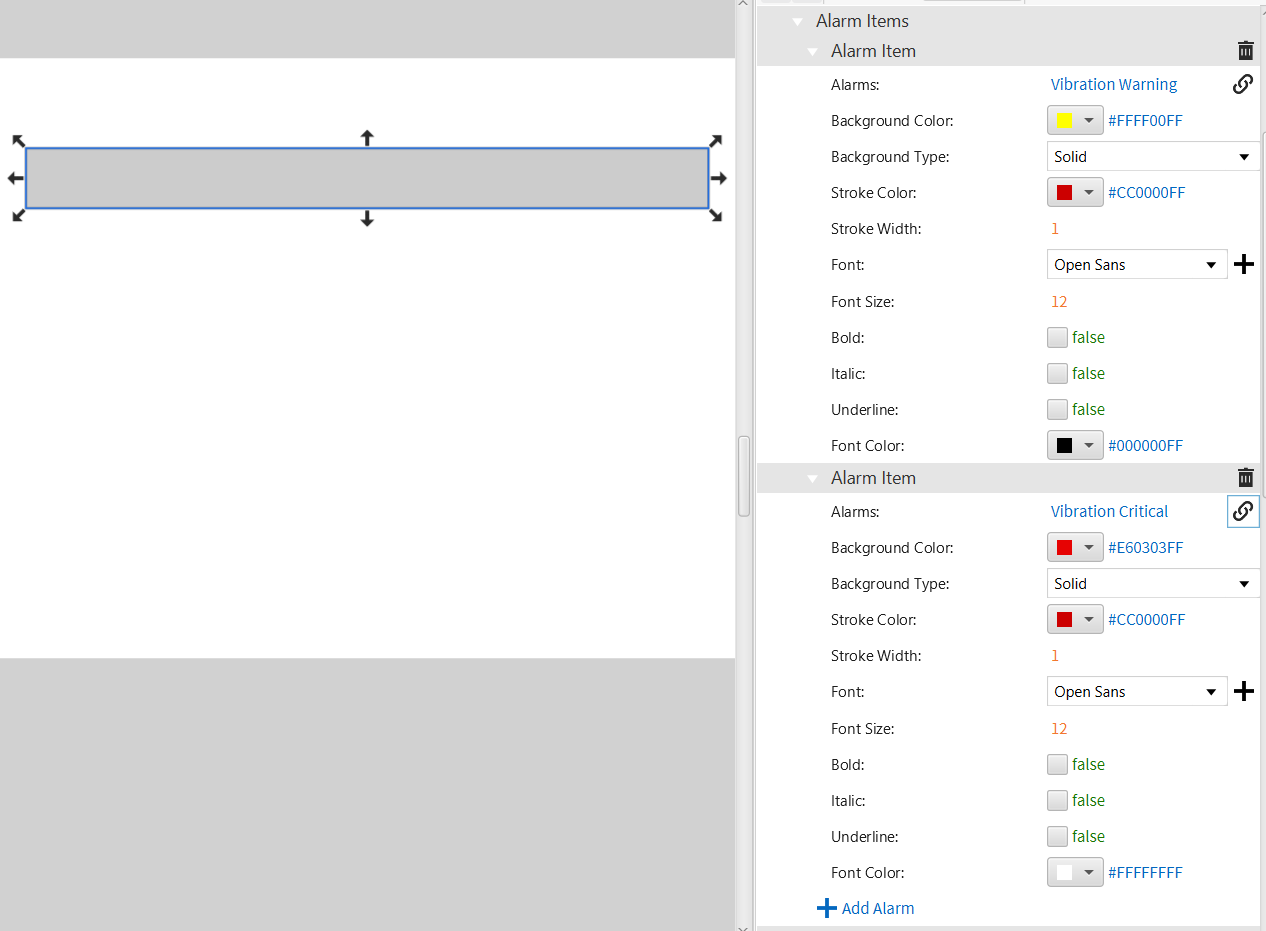
- Adjust the Message Gap, Scroll Direction, and Scroll Speed properties to control how the alarm messages scroll across the banner.
Project Deployment
-
Click Tools > Launch Simulator to launch the Canvas Offline Simulator.
-
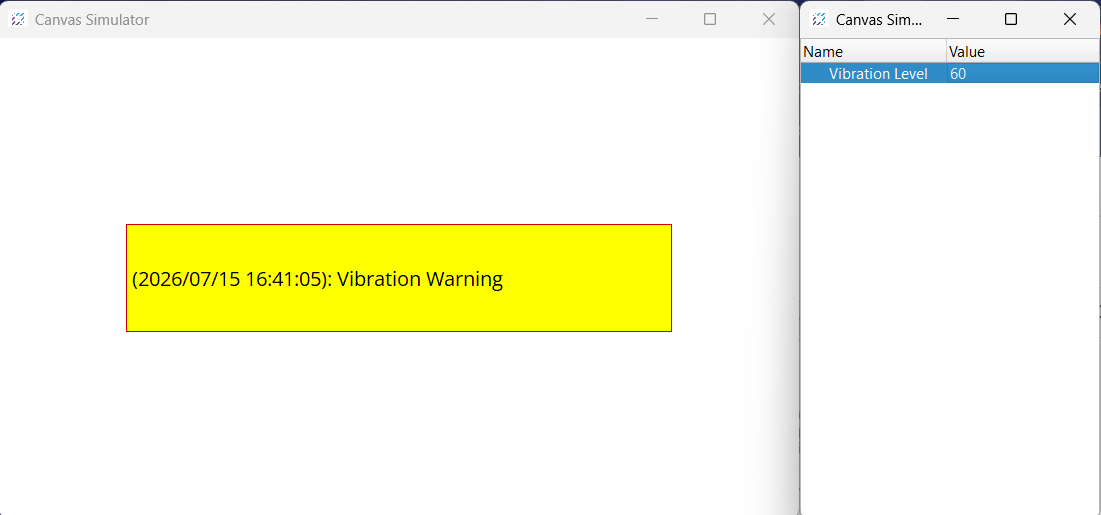
Change the value of the Vibration Level tag to 60.
Notice how the Alarm Banner displays the Vibration Warning alarm with a yellow background.
-
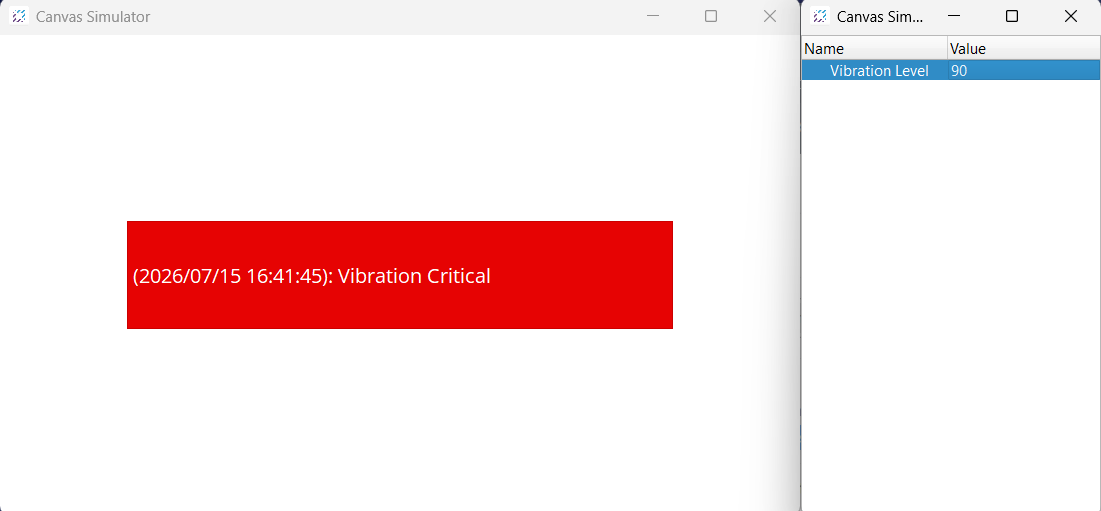
Change the value of the Vibration Level tag to 90.
Notice how the Alarm Banner now displays the Vibration Critical alarm with a red background, styled independently from the warning alarm.