Update Version
Check Xpanel Version
To check the Xpanel version, exit the runtime and click About Xpanel.
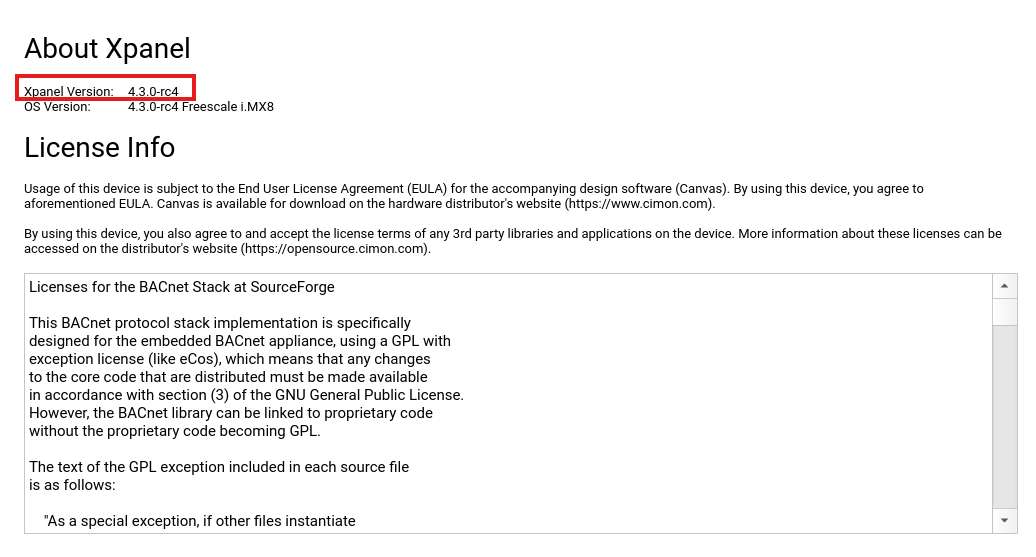
This page shows the version of the Xpanel and operating system. It also shows the licensing information.
Note: the version of the Canvas software and Xpanel must match to the minor version.
Example: you can have the Xpanel version on v4.2.2 and use the Canvas software on version v4.2.0 to edit projects.
Xpanel version v4.3.0 with Canvas software on version v4.2.0 is NOT valid.
SWU Files
Updating the Xpanel version requires a file named xpupdate.swu. If the file is not named xpupdate.swu, the update will fail.
Please email support@cimoninc.com to receive this file.
If you receive a file similarly named cm-ext07_quad_4.1.0.swu or cm-ext2x_quad_4.2.2.swu, for example, rename it to xpupdate.swu if updating within major version 4.
If updating from 3.x.x >> v4.1.0 (refer to the version checkpoint section for more information), keep the first file named cm-ext07_quad_4.1.0.swu.
Once you have received the proper SWU file, please proceed with the following steps.
Version Checkpoint
Contact support@cimoninc.com if you need assistance.
Version v4.0.0 or higher
If the version of your Xpanel is v4.0.0 or higher, you can upgrade directly to the newest version.
Example: v4.0.2 >> v4.3.0 is valid.
Downgrading is also possible in major version 4.
Example: v4.3.0 >> v4.2.2 is valid but v4.3.0 >> v3.1.0 is NOT valid.
Below Version v4.0.0
If the version of your Xpanel is below v4.0.0, you must upgrade to v4.1.0 before upgrading to a higher version.
Example: v3.1.0 >> v4.1.0 >> v4.3.0 is valid but v3.1.0 >> v4.3.0 is NOT valid.
USB
Once you have received the proper file, upload it to a USB flash drive.
Note: USBs must be formatted in exFAT or FAT32 to be used with the eXT, nXT, and eXT2 series.
If the USB is a different format, the Xpanel will NOT read it.
Eject the USB from the computer and plug it into the Xpanel.
Upgrade/Downgrade
To perform a version upgrade or downgrade, click the System Maintenance.
If the xpupdate.swu file was renamed from an older version, like cm-ext07_quad_4.1.0.swu, and the Xpanel is in a higher version, like v4.3.0, performing the update will downgrade the Xpanel version to v4.1.0.
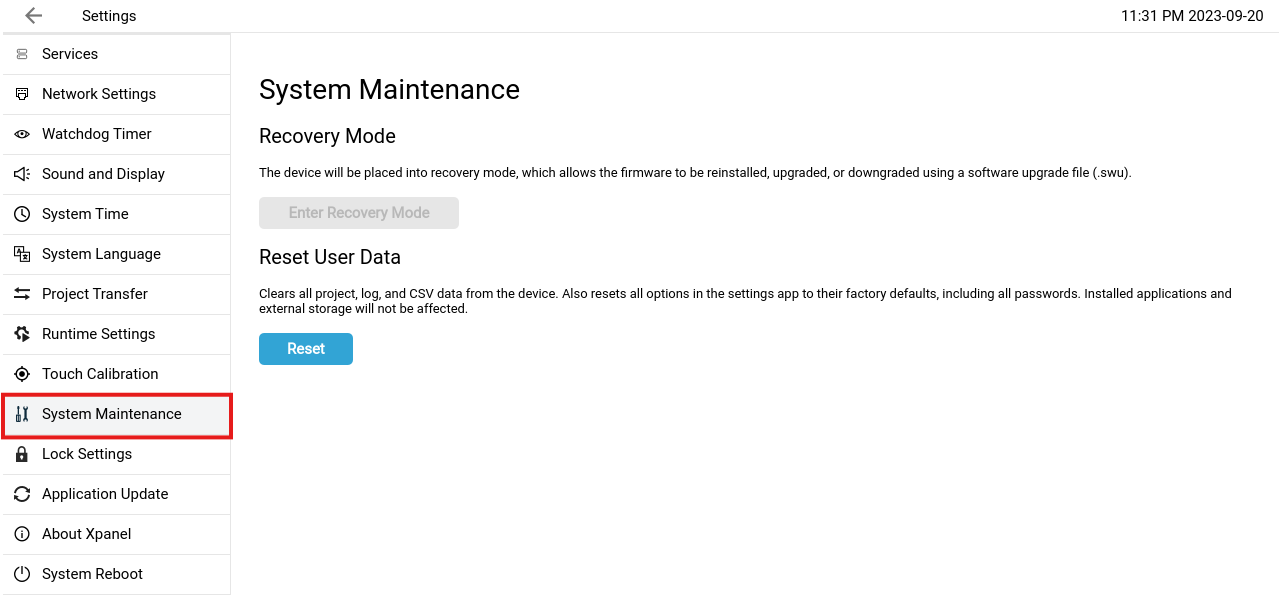
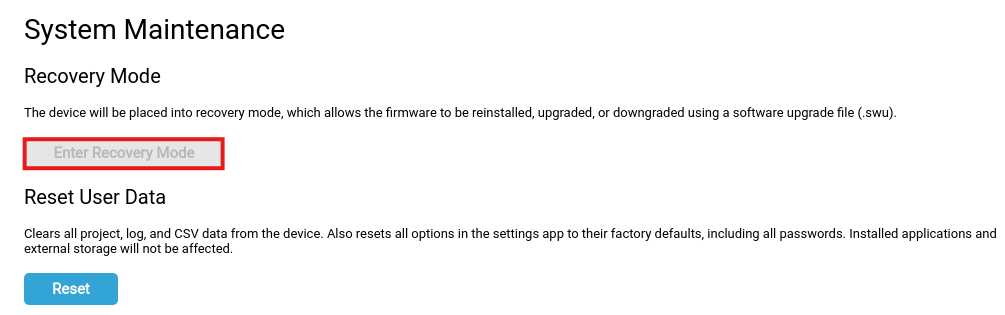
If the USB is not plugged into the Xpanel, or it's not formatted properly, the Enter Recovery Mode option will be grayed out.
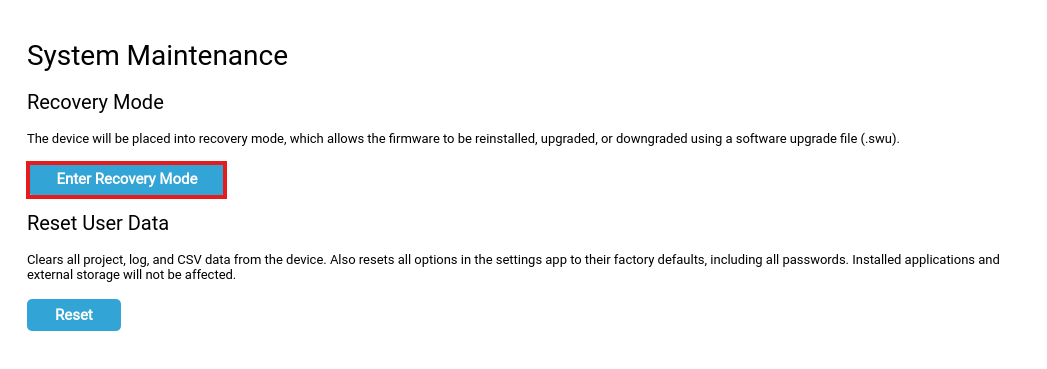
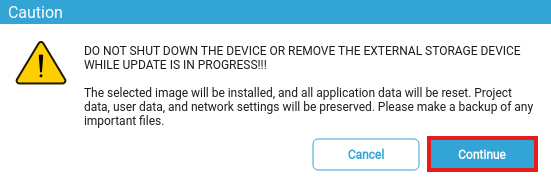
If the Xpanel can read the USB properly, the Enter Recovery Mode option will be blue. Click it and press Continue.
In the box, type recovery and select Confirm.
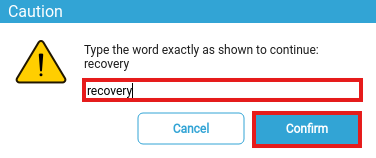
The Xpanel will enter recovery mode and update the version.