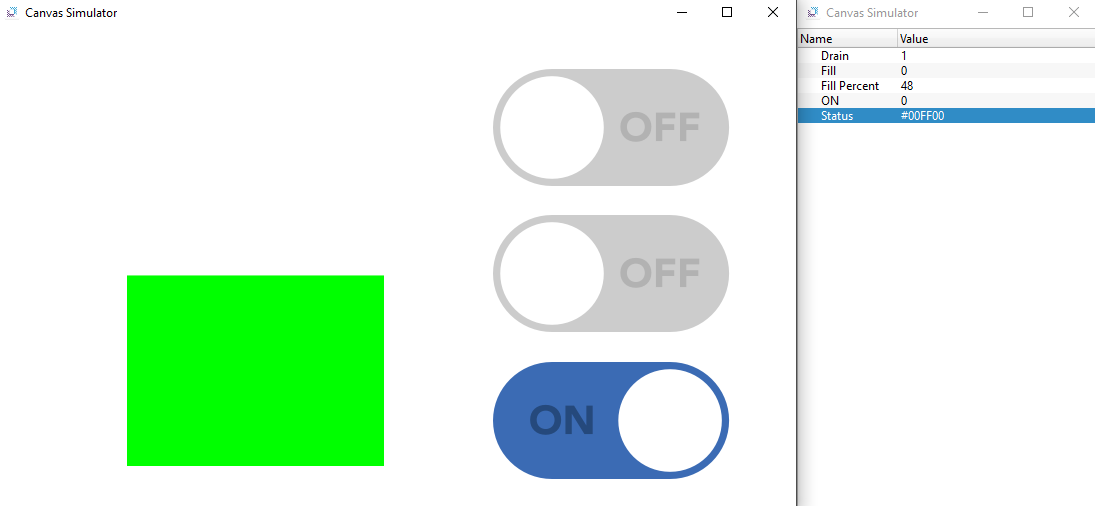
Exercise: Filling and Draining a Water Tank
Fillable Rectangle Configuration
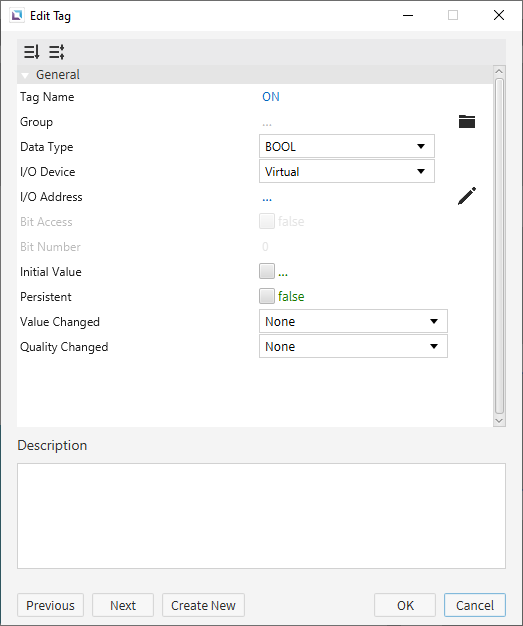
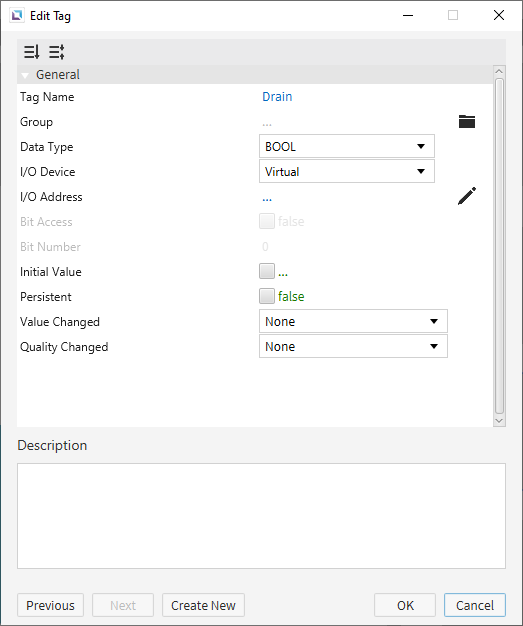
- Create five tags. The first tag will be named "Fill" and will be a BOOL tag. The second tag will be named "Fill Percent" and will be an INT16 tag. The third tag will be named "Status" and will be a STRING tag. The default value will be '#00FF00'. The fourth tag will be named "ON" and will be a BOOL tag. The fifth tag will be named "Drain" and will be a BOOL tag. Set the initial values for each tag as shown below.
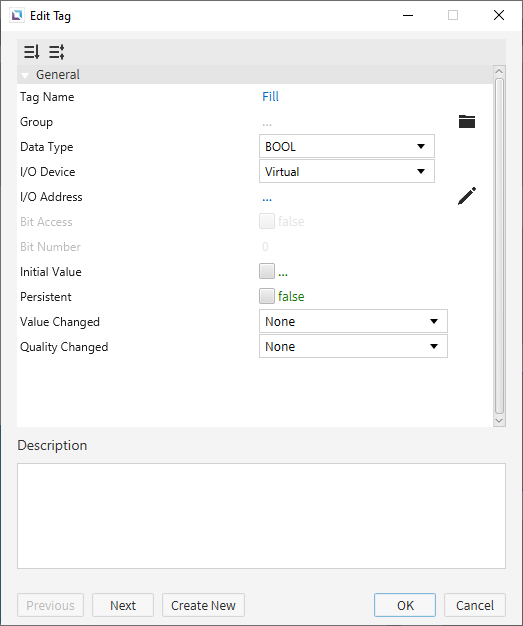
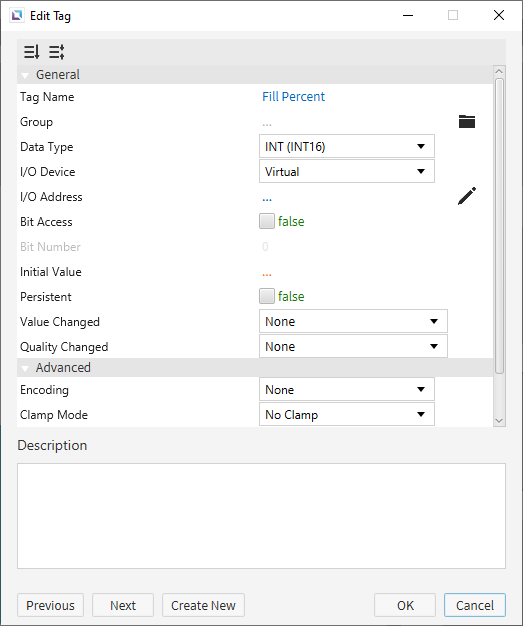
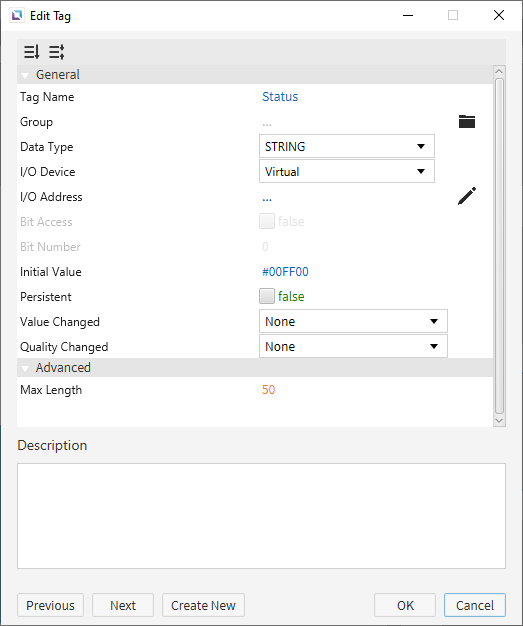
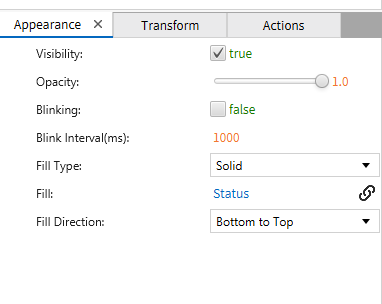
- Create a fillable rectangle object on the screen. Bind the tag "Fill Percent" to the Value and bind the tag "Status" to the Fill parameter.

- Create 3 Switch/Lamp objects. To the first one, bind the "ON" tag. To the second one, bind the "Drain" tag. To the third one, bind the "Status" tag.


- Create a script. Click on Tools > Script Editor to open the Script Editor. Click New to create a new script. Name the script "Fill Tank" and click OK. The script should be a manual script. Copy and paste the following code into the script:
tag.write("ON", !tag.read("ON"));
thread.msleep(100);
while(tag.read("ON")){
	if(tag.read("Fill")){
		if(tag.read("Fill Percent") < 100){
		tag.write("Fill Percent", tag.read("Fill Percent") + 1);
		}
	}
	else if(tag.read("Drain")){
		if(tag.read("Fill Percent") > 0){
			tag.write("Fill Percent", tag.read("Fill Percent") - 1);
		}
	}
	if(tag.read("Fill Percent") < 79){
		tag.write("Status", "#00FF00");
	}
	else if(tag.read("Fill Percent") >= 79 && tag.read("Fill Percent") < 89){
		tag.write("Status", "#FFFF00");
	}
	else if(tag.read("Fill Percent") >= 89){
		tag.write("Status", "#FF0000");
		}
	thread.msleep(300);
}
- On the Switch/Lamp object that is bound to the "ON" tag, go to the Actions tab. Under On Press, create a "Call Script" command. Select the "Fill Tank" script from the list and click OK.
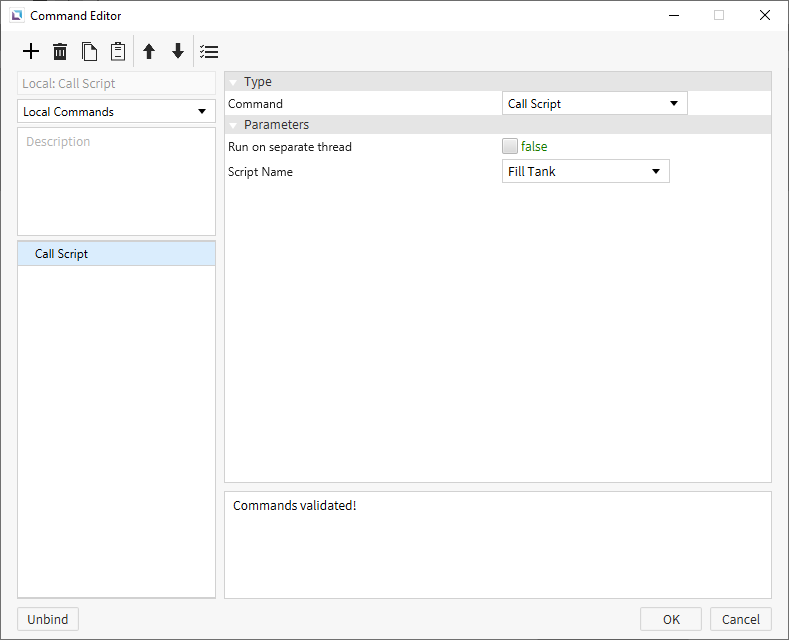
- For the other two Switch/Lamp objects, create an action on the first one to toggle the tag bound to the Switch/Lamp object. Create an action on the second one to toggle the tag bound to the Switch/Lamp object.
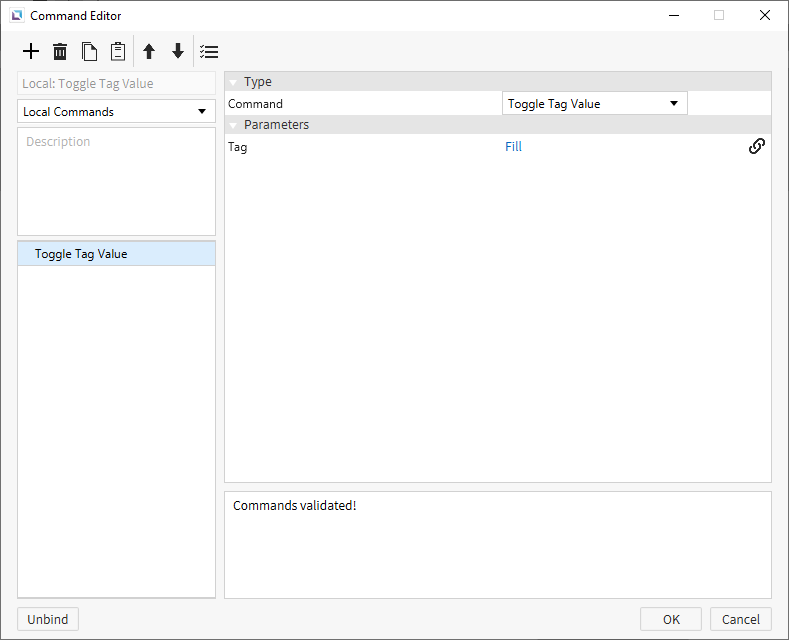
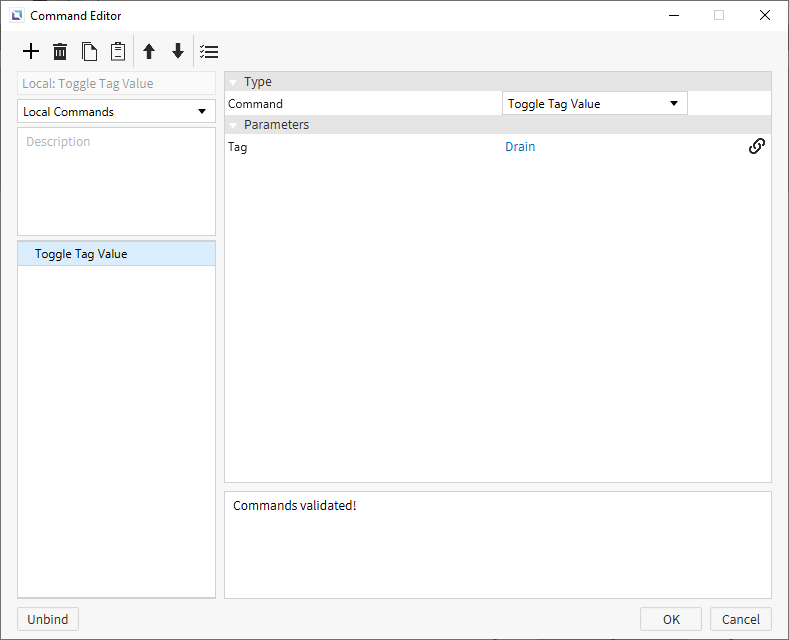
Fillable Rectangle Runtime
- Click Tools > Launch Simulator to launch the Canvas Simulator.
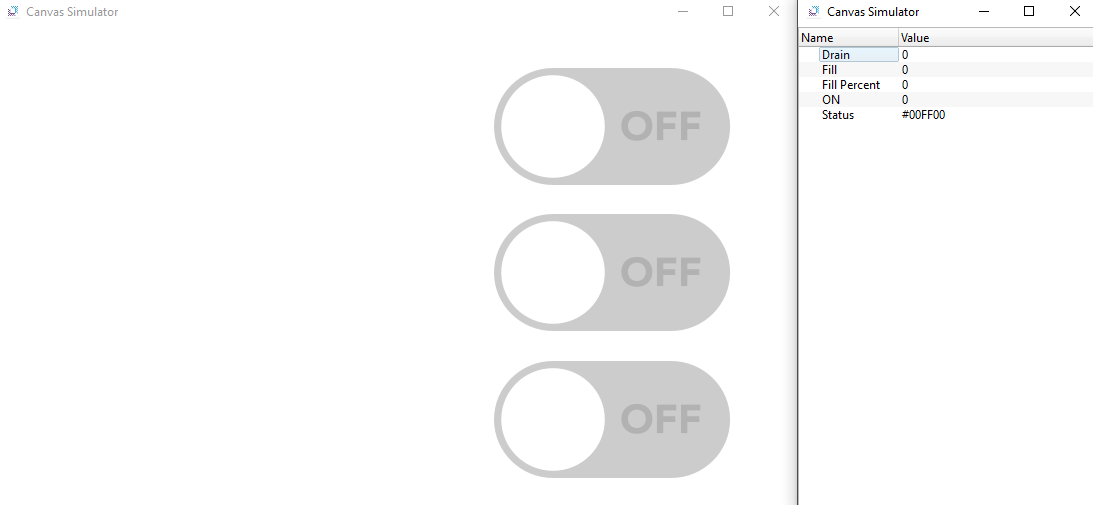
- Toggle the ON Switch/Lamp. Once that one is toggled, toggle the Fill Switch/Lamp. The Fillable Rectangle should start to fill. The fillable rectangle will switch to yellow and red depending on how full the tank is.
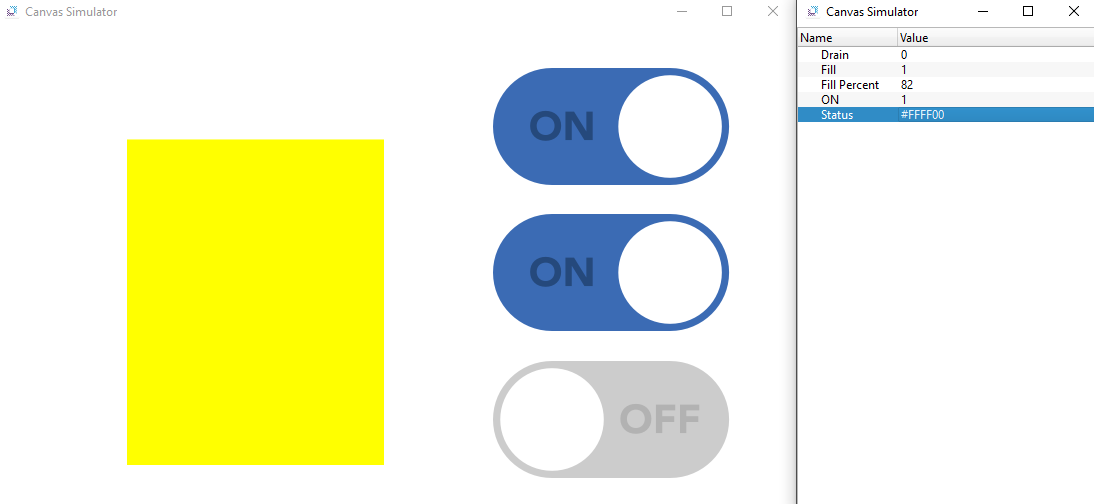
- Once the tank is full, turn off the Fill Switch/Lamp and toggle the Drain Switch/Lamp. The Fillable Rectangle should start to drain. The fillable rectangle will switch to yellow and green depending on how full the tank is.
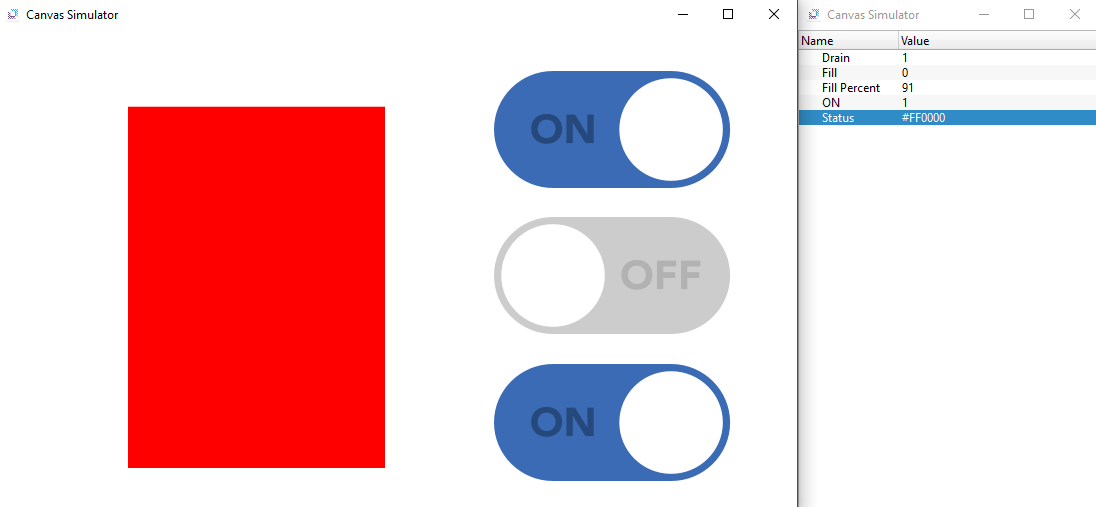
- Toggle the ON Switch/Lamp to stop the tank from filling or draining. The Fillable Rectangle should stop filling or draining.